
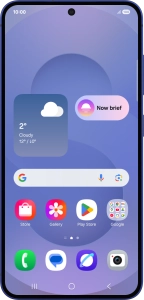
Samsung Galaxy S25

Samsung Galaxy S25

Android 15

How to guides

Use Galaxy AI on your phone

Galaxy AI allows you to use many of your phone's functions in a smarter and more efficient way. Here you can see some examples of Galaxy AI usage. To use most of the Galaxy AI functions, you need to activate your Samsung account on your phone and set up your phone for internet.

Step 1 of 38

Go to the required picture.

Step 2 of 38

Press and hold the Home key.

Step 3 of 38

Draw a circle around the required object on the picture and wait for the search results.

Step 4 of 38

Follow the instructions on the screen to use the search results.

Step 5 of 38

Press the Return key to return to the picture.

Step 6 of 38

Open a supported app, e.g. Messages.

Step 7 of 38

Select an existing conversation or create a new message and press the AI icon.

Step 8 of 38

To generate a text, press Composer and follow the instructions on the screen to use the function.

Step 9 of 38

To check your text for grammatical and spelling errors, press Spelling and grammar and follow the instructions on the screen to use the function.

Step 10 of 38

To change the writing style of your text, press Writing style and follow the instructions on the screen to use the function.

Step 11 of 38

To use Galaxy AI to translate a conversation, slide your finger downwards starting from the top right side of the screen.

Step 12 of 38

Press Interpreter.

Step 13 of 38

Follow the instructions on the screen to select the required language settings and use the function.

Step 14 of 38

To use Galaxy AI to translate messages, open a supported app, such as Messages.

Step 15 of 38

Start a conversation and press the AI icon.

Step 16 of 38

Press Chat translation.

Step 17 of 38

Follow the instructions on the screen to select the required language settings and use the function.

Step 18 of 38

To use Galaxy AI for translation during a call, press Call assist.

Step 19 of 38

Press Live translate.

Step 20 of 38

Follow the instructions on the screen to select the required language settings and use the function.

Step 21 of 38

Open Gallery and go to the required picture.

Step 22 of 38

Press the AI icon.

Step 23 of 38

To resize, remove or move objects on your pictures, press Generative edit.

Step 24 of 38

To add an object to your picture, press Sketch to image.

Step 25 of 38

To change your portrait photos to different styles, press Portrait studio.

Step 26 of 38

Follow the instructions on the screen to use the selected function and press Generate.

Step 27 of 38

Press Save copy to save the generated photo suggestion.

Step 28 of 38

Press Generate one more to generate a new photo suggestion.

Step 29 of 38

Open Gallery and go to the required video.

Step 30 of 38

Press the AI icon.

Step 31 of 38

Press the required sound type.

Step 32 of 38

Slide your finger right or left on the indicator to set the required volume for the selected sound type.

Step 33 of 38

Press Mute to completely remove the selected audio type from the video.

Step 34 of 38

Press Save copy to save the edited video.

Step 35 of 38

Slide your finger downwards starting from the top right side of the screen.

Step 36 of 38

Press the settings icon.

Step 37 of 38

Press Galaxy AI.

Step 38 of 38

More examples of using Galaxy AI are now displayed.

1. 1. Use Circle to Search (Circle to Search by Google)

Go to the required picture.
Press and hold the Home key.
Draw a circle around the required object on the picture and wait for the search results.
Follow the instructions on the screen to use the search results.
Press the Return key to return to the picture.

2. 2. Use Galaxy AI for text editing

Open a supported app, e.g. Messages.
Select an existing conversation or create a new message and press the AI icon.
To generate a text, press Composer and follow the instructions on the screen to use the function.
To check your text for grammatical and spelling errors, press Spelling and grammar and follow the instructions on the screen to use the function.
To change the writing style of your text, press Writing style and follow the instructions on the screen to use the function.

3. 3. Use Galaxy AI for translation

To use Galaxy AI to translate a conversation, slide your finger downwards starting from the top right side of the screen.
Press Interpreter.
Follow the instructions on the screen to select the required language settings and use the function.
To use Galaxy AI to translate messages, open a supported app, such as Messages.
Start a conversation and press the AI icon.
Press Chat translation.
Follow the instructions on the screen to select the required language settings and use the function.
To use Galaxy AI for translation during a call, press Call assist.
Press Live translate.
Follow the instructions on the screen to select the required language settings and use the function.

4. 4. Use Galaxy AI for picture editing

Open Gallery and go to the required picture.
Press the AI icon.
To resize, remove or move objects on your pictures, press Generative edit.
To add an object to your picture, press Sketch to image.
To change your portrait photos to different styles, press Portrait studio.
Follow the instructions on the screen to use the selected function and press Generate.
Press Save copy to save the generated photo suggestion.
Press Generate one more to generate a new photo suggestion.

5. 5. Use Galaxy AI for video editing

Open Gallery and go to the required video.
Press the AI icon.
Press the required sound type.
Slide your finger right or left on the indicator to set the required volume for the selected sound type.
Press Mute to completely remove the selected audio type from the video.
Press Save copy to save the edited video.

6. 6. See more examples of Galaxy AI usage

Slide your finger downwards starting from the top right side of the screen.
Press the settings icon.
Press Galaxy AI.
More examples of using Galaxy AI are now displayed.

Get information on...

Or select...

Another device

Customer Impacting Events

Mobile ›
Excellent Very Good Good Fair Low No Connection
Landline & Broadband ›
Excellent Very Good Good Fair Low No Connection
main_icn_Play_arrow main_icn_Chevron_down main_icn_Chevron_right main_icn_Chevron_left main_icn_Chevron_up

Internet Explorer Not Supported

Please note that we do not support Internet Explorer. For optimal browsing we recommend Chrome, Safari, or Firefox.