
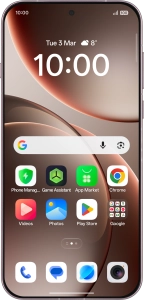
OPPO Find X9 Pro 5G

OPPO Find X9 Pro 5G

Android 16

How to guides

Use OPPO AI on your phone

OPPO AI allows you to use many of your phone's functions in a smarter and more efficient way. Here you can see some examples of OPPO AI usage. To use most of the OPPO AI functions, you need to activate your OPPO account on your phone and set up your phone for internet.

Step 1 of 14

Go to the required picture.

Step 2 of 14

Press and hold the bottom of the screen.

Step 3 of 14

Draw a circle around the required object on the picture and wait for the search results.

Step 4 of 14

Follow the instructions on the screen to use the search results.

Step 5 of 14

Press the end icon to return to the picture.

Step 6 of 14

Open a supported app, e.g. Notes.

Step 7 of 14

Press the new note icon.

Step 8 of 14

Press the text input field and key in the required text, topic or some keywords.

Step 9 of 14

Press the AI icon.

Step 10 of 14

Press the required setting and follow the instructions on the screen to use the selected function.

Step 11 of 14

Open Photos and go to the required picture.

Step 12 of 14

Press the edit icon.

Step 13 of 14

Press AI Editor.

Step 14 of 14

Press the required settings and follow the instructions on the screen to use the selected function.

1. 1. Use Circle to Search (Circle to Search by Google)

Go to the required picture.
Press and hold the bottom of the screen.
Draw a circle around the required object on the picture and wait for the search results.
Follow the instructions on the screen to use the search results.
Press the end icon to return to the picture.

2. 2. Use OPPO AI for text editing

Open a supported app, e.g. Notes.
Press the new note icon.
Press the text input field and key in the required text, topic or some keywords.
Press the AI icon.
Press the required setting and follow the instructions on the screen to use the selected function.

3. 3. Use OPPO AI for picture editing

Open Photos and go to the required picture.
Press the edit icon.
Press AI Editor.
Press the required settings and follow the instructions on the screen to use the selected function.

Get information on...

Or select...

Another device

Customer Impacting Events

Mobile ›
Excellent Very Good Good Fair Low No Connection
Landline & Broadband ›
Excellent Very Good Good Fair Low No Connection
main_icn_Play_arrow main_icn_Chevron_down main_icn_Chevron_right main_icn_Chevron_left main_icn_Chevron_up

Internet Explorer Not Supported

Please note that we do not support Internet Explorer. For optimal browsing we recommend Chrome, Safari, or Firefox.