Apple iPad Pro 11 (2025)

Apple iPad Pro 11 (2025)

iPadOS 26

How to guides

Personalise your tablet's home screen

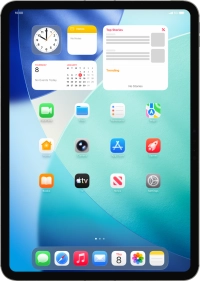
You can personalise the appearance of your tablet's home screen, such as changing the size and colour of app icons and adding or removing home screen pages.

Step 1 of 16

Press and hold anywhere on the home screen.

Step 2 of 16

Press Edit.

Step 3 of 16

Press Customise.

Step 4 of 16

Press the required setting to select the size of app icons on the home screen.

Step 5 of 16

Press the required setting to select background theme for the home screen.

Step 6 of 16

If you select Tinted, follow the instructions on the screen to set the required colour theme for app icons on the home screen.

Step 7 of 16

Press and hold the required app icon. Drag the app icon to the required position on the home screen.

Step 8 of 16

Drag the app icon right or left to place the app icon on a new home screen page.

Step 9 of 16

Press Done.

Step 10 of 16

Press and hold anywhere on the home screen.

Step 11 of 16

Press Edit.

Step 12 of 16

Press Edit Pages.

Step 13 of 16

Press the field below the required home screen page to turn page view on or off.

Step 14 of 16

Press the delete icon next to the required home screen page.

Step 15 of 16

Press Remove.

Step 16 of 16

Press Done.

1. 1. Personalise your tablet's home screen

Press and hold anywhere on the home screen.
Press Edit.
Press Customise.
Press the required setting to select the size of app icons on the home screen.
Press the required setting to select background theme for the home screen.
If you select Tinted, follow the instructions on the screen to set the required colour theme for app icons on the home screen.

2. 2. Organise app icons on the home screen

Press and hold the required app icon. Drag the app icon to the required position on the home screen.
Drag the app icon right or left to place the app icon on a new home screen page.
Press Done.

3. 3. Remove home screen page

Press and hold anywhere on the home screen.
Press Edit.
Press Edit Pages.
Press the field below the required home screen page to turn page view on or off.
Press the delete icon next to the required home screen page.
Press Remove.
Press Done.

Get information on...

Or select...

Another device

Customer Impacting Events

Mobile ›
Excellent Very Good Good Fair Low No Connection
Landline & Broadband ›
Excellent Very Good Good Fair Low No Connection
main_icn_Play_arrow main_icn_Chevron_down main_icn_Chevron_right main_icn_Chevron_left main_icn_Chevron_up

Internet Explorer Not Supported

Please note that we do not support Internet Explorer. For optimal browsing we recommend Chrome, Safari, or Firefox.